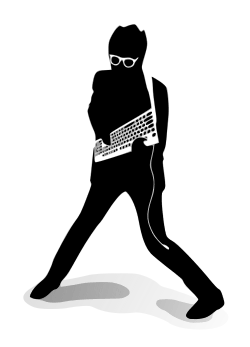
Frets on Fire Controls Guide: Master the Inverted Keyboard Pose
The defining brilliance of Frets on Fire is its revolutionary hardware adaptation. You do not need an expensive plastic gaming peripheral to play; instead, the game ingeniously transforms your standard desktop or laptop keyboard into a virtual interactive guitar neck. Learn how to hold your hardware correctly, map your default frets, and configure optimal input polling profiles.
⌨️ How to Hold Your Keyboard Like a Guitar
To achieve the authentic rhythm gameplay intended by Unreal Voodoo, you must physically pick up and invert your keyboard layout frame:
- The Left Hand (Fret Work): Cradle the left side of the keyboard. Rest your fingers naturally across the
F1, F2, F3, F4, and F5function keys. These keys act as your guitar frets. - The Right Hand (Strumming): Rest your right arm across the body of the keyboard, positioning your thumb directly over the
ENTERorSPACEBARkeys. This serves as your directional strum bar. - The Stance: Tuck the keyboard under your armpit or rest it against your chest to secure full leverage during fast-paced thrashing segments.
📊 Complete In-Game Key Binding Map
A comprehensive technical compilation of default keyboard operational layouts during both live neck tracking and structural menu navigation loops.
1. Fretboard Performance Bindings
2. Dashboard & System Menu Navigation
🛡️ Fixing Keyboard Ghosting & Key Blocks
Are your complex multi-note chords dropping or failing to register? Understand the hardware matrix limitations and map around them instantly.
⚠️ What is Keyboard Ghosting in Frets on Fire?
Standard office keyboards and older laptop internal circuits route keys through a shared internal grid wire matrix. When you hold down multiple keys simultaneously (such as pressing F1 + F2 + F3 at the same time during a dense metal song chord), the internal controller chip gets confused by the overlapping electrical signals and blocks the third input frame entirely.
If your physical hardware does not natively support NKRO (N-Key Rollover) over USB connections, you will suffer structural note misses inside the game client engine, regardless of your personal timing precision.
🛠️ Best Alternative Key Layouts to Bypass Matrix Limits
If your default function row locks up, go to Game Settings → Controls and change your binding scheme to one of these verified ghosting-free zones. These rows utilize separate tracking traces on standard consumer controller circuit boards:
The Tier-2 Number Row Setup
Map your 5 frets directly onto your standard numeric tracking sequence:
Strum: [ SPACEBAR ]
The Home-Row Linear Stance
Utilizes standard lower-tier baseline typist positions for balanced wrist alignment:
Strum: [ RIGHT SHIFT ]
🎸 Connecting Guitar Hero & Rock Band Guitar Peripherals
Dust off your old console hardware. Transform your plastic performance decks into native USB engine controllers with custom XInput translation schemes.
Hardware Link Layer Connection
Xbox 360/Xbox One Guitars: Plug wired variants straight into open USB 2.0/3.0 configurations. Wireless units require an official Xbox 360 Wireless Gaming Receiver for Windows node.
PS3/Wii Guitars: PlayStation dongles pair automatically as native HID components. Wii peripherals require a specialized third-party hardware adapter (like a retro-cult V3 Adapter) or custom Bluetooth wrappers to bridge data streams.
Input Profiler Mapping Protocol
Boot the Frets on Fire engine shell. Navigate to Settings → Game Settings → Controls. Do not use standard profiles; highlight each Fret option manually, press your input trigger, and tap the corresponding colored button on the physical neck extension to lock in the mapping block.
Strum Bar Signal Overriding
If your guitar’s bidirectional strum bar maps natively as a POV Hat switch or continuous analog axis tracker, vanilla Frets on Fire might fail to read it. If this happens, use an external emulator tool (like AntiMicroX or JoyToKey) to map the physical strum switches to tap the keyboard ENTER and SPACEBAR inputs seamlessly.
💡 Calibration Advisory: Hardware adapters and wireless transmission signals introduce minor millisecond processing lag. After configuring an external instrument, always navigate to Settings → Audio Settings → A/V Delay inside the game to shift your sync tracking window and compensate for controller latency.